

Videos
Watch Cleverscope video tutorials — learn how to
use the CS548 for measurement, analysis and debugging.
Our videos and Tutorials give step-by-step instructions on specific operations with a Cleverscope. Screenshots taken during operation of a Cleverscope show exactly what you can expect to see.
Sample setup files for your Cleverscope are .apc files that capture all settings and screen placements for the scope, enabling repeatability for experiments and testing. They are very useful for university class sets to be initialised for a particular scenario.
Download and extract from the zip file. Go to File | Open and browse to the .apc file. Where "Get Frame" had been clicked before saving the full frame is included in the file
Cleverscope units can be used for frequency response analysis, long term measurements, maths, protocol decoding and many other functions that engineers need on a daily basis.
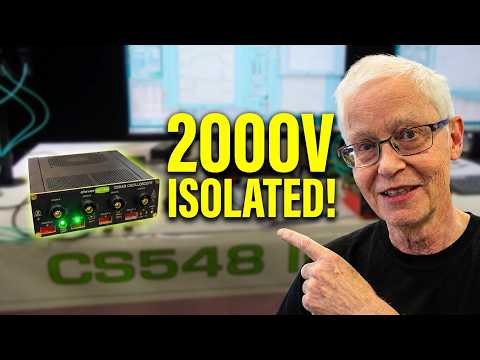
EEVBlog Interview with Bart about the CS548 and fiber digitizers
At Electronex in Sydney in June 2026 Dave Jones dived into the CS548 and accessories with Bart
A quick guide to using the CS548
This video shows you how the UI works, and quickly explores triggering and the sig gen.
CS548 Triggering
Use the CS548 Trigger to capture all manner of signal events.
Measuring a GaN transistor on the high side
Meaure Id, Vds, and Vsat on a GaN transiror to measure the high side power, energy and RdsOn.
16 Channel Isolated Oscilloscope
Four CS548 Oscilloscopes can be linked to enable 16 isolated channels with better than 600pSeconds alignment
CS548 using FRA to measure Power Supply Gain/Phase
Using the FRA function in the CS302 software and a CS548 to measure Gain/Phase of a TPS55340 Power Supply
Streaming to disk Introduction
You can use Charting to stream captured samples to disk continuously at up to 3 Msps. The maximum capture size is around 300 G samples. After having captured you can zoom and pan very quickly to find the features important to you. This video shows you how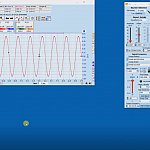
Streaming with the CS448
Set up a CS448 in streaming mode to track down a random anomaly - works similarly with the CS328A and CS548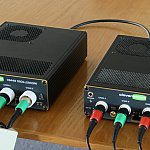
Connect up and use two CS448's as an 8 channel oscilloscope
We use two CS448's to show we can capture 8 time synchronized channels with less than 500ps dispersion between channels.
Long Duration Protocol Decode
We capture 10 seconds of high speed digital data, and then decodes all the data packets captured. Results are also saved to Notes for later viewing and copying to Excel. Many other oscilloscopes now decode protocols, but they seem to be based on short messages only. We show that you can view complex interactions easily. > Read more
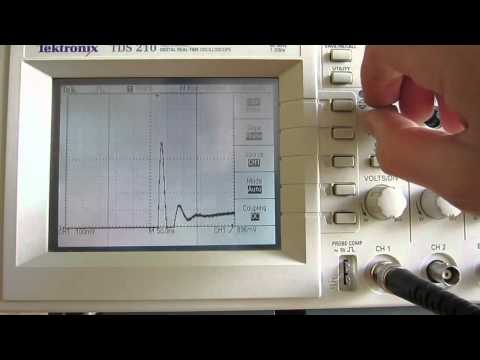
Comparing Tek and Cleverscope zoom
We compare zooming on square wave overshoot using a Tek scope and Cleverscope. We hope you'll be pleasantly surprised by how easy to use Cleverscope is. > Read more
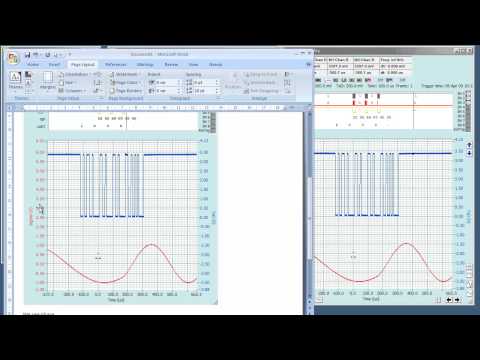
Copy and Paste
Copy and paste with Cleverscope is fast and powerful. You realize how useful it is after going back to find crucial information in the pasted graph. The same goes for File Save. There is not much effort in Copy/Paset or File Save, but could save you heaps of time and effort later in reproducing what you've already done before, all over again. > Read more
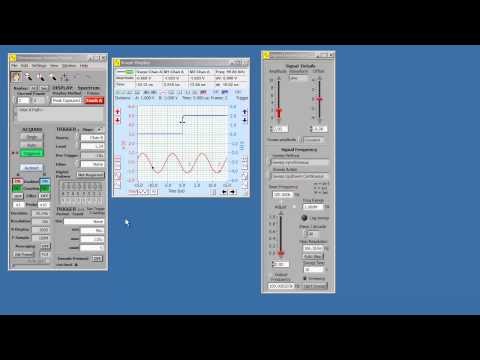
Display Docking
With display docking you can move all the Cleverscope windows in one group by moving the Cleverscope Control Panel. You can also minimize and restore as a group by minimizing just the Control Panel. This is useful if you have several screens, and windows open all over the place. This video shows you how. > Read more
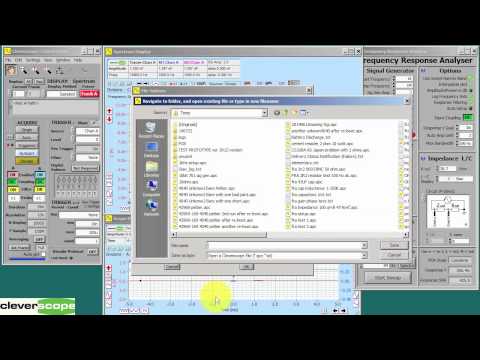
How to save FRA data points to text file
Use the Cleverscope Frequency Response Analyser to measure and then save FRA data points to a text file for analysis with an external program such as Excel or Matlab. We also show how you can use the AddRef to see a family of captured curves.
Filter Response
Use the Cleverscope Frequency Response Analyser to measure the Gain/Phase response of a Minicircuits BBP-30+ bandpass filter.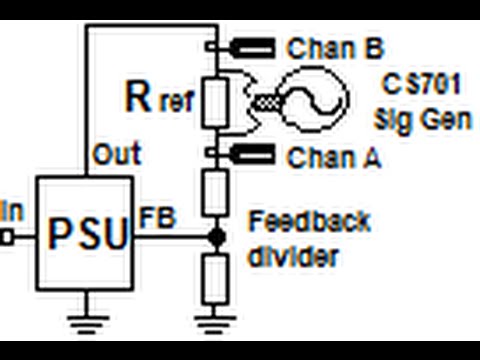
PSU Gain/Phase
Use the Cleverscope Frequency Response Analyser to measure the Gain/Phase of a power supply. This video shows you how to connect up a CS328A-FRA to measure the Gain/Phase of an LTC3589 over the frequency range 20 Hz - 1 MHz.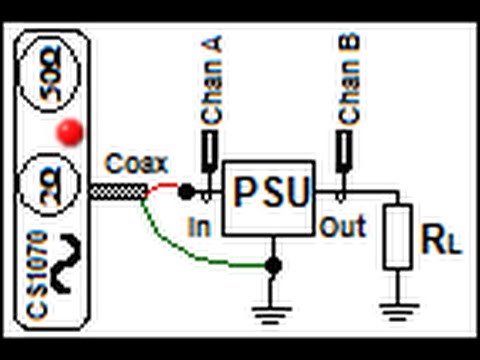
Power Supply Rejection Ratio
Use the Cleverscope Frequency Response Analyser to measure the Power Supply Rejection Ratio (PSRR) of a power supply with the CS1070 Power Amplifier.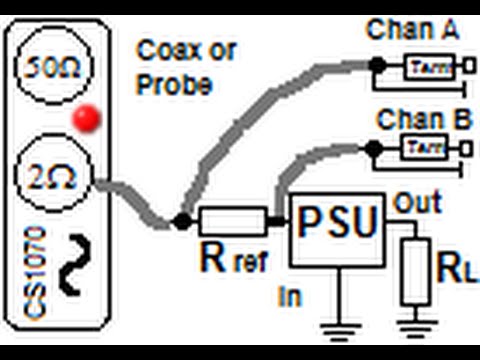
Input Impedance
Use the Cleverscope Frequency Response Analyser to measure the input impedance of a power supply with the CS1070 Power Amplifier.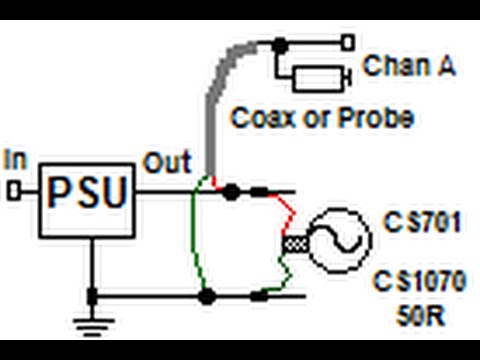
Output Impedance
Use the Cleverscope Frequency Response Analyser to measure low impedances (1mOhm - 20 Ohm) including on live Power Supplies.